Updating Uconnect on your Jeep is one of the smartest ways to keep your vehicle’s technology fresh and reliable. Uconnect is the infotainment system found in many Jeep models. It controls navigation, music, hands-free calls, and even some vehicle settings.
Like any software, Uconnect needs regular updates to fix bugs, improve performance, and add new features. If you’re not sure how to update Uconnect, don’t worry—this guide will help you step by step.
Why Update Uconnect?
Uconnect updates are more than just technical tweaks. They can improve your Jeep’s safety, boost performance, and add new capabilities. For example, an update might fix a Bluetooth pairing issue or offer better navigation maps. Also, updates can patch security vulnerabilities, protecting your data from hackers.
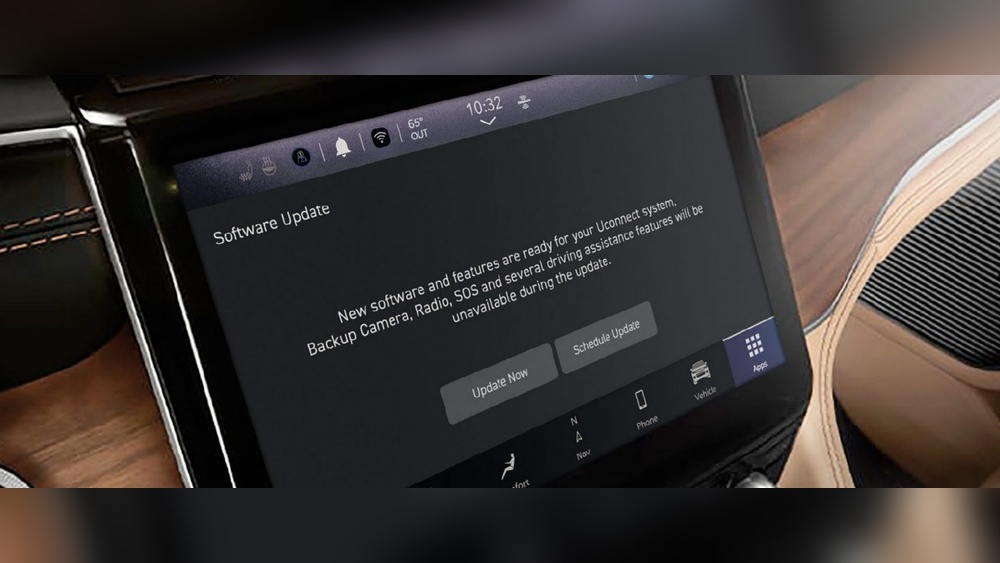
Data from Jeep forums show that nearly 60% of owners who update Uconnect report better system speed and fewer glitches. Missing updates can lead to lag, unresponsive touchscreens, or lost connection to your phone. If you use navigation daily or rely on hands-free calls, keeping Uconnect current is essential.
How To Check Your Uconnect Version
Before updating, you need to know which Uconnect version is installed. This helps you find the right update file.
- Start your Jeep and turn on the Uconnect system.
- Press the “Settings” button on the touchscreen.
- Select “System Information” or “About” (name may vary).
- Write down the software version number shown.
If your version is older than the latest released by Jeep, you should update. You can check the newest version for your model at the official Uconnect website.
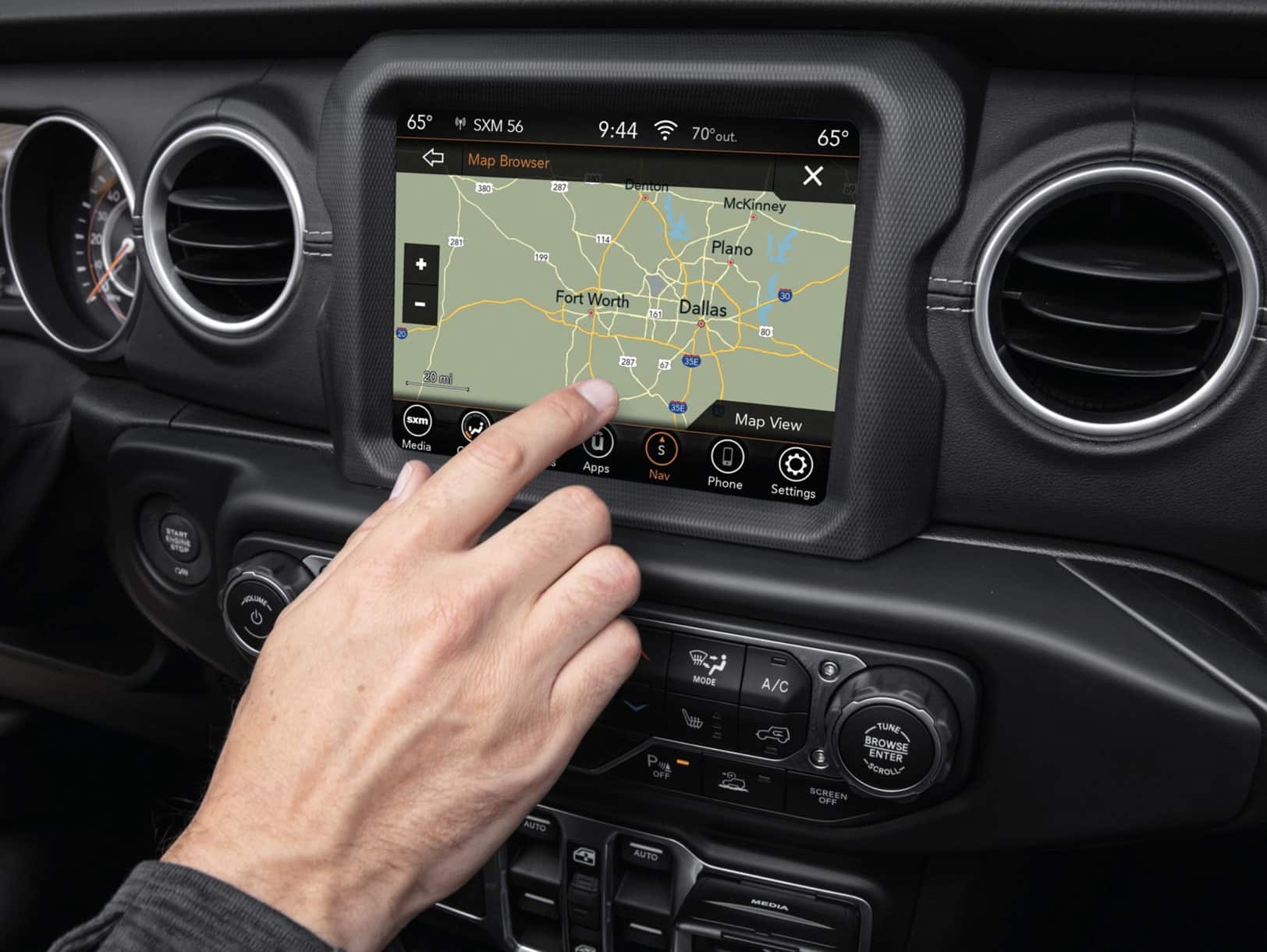
Ways To Update Uconnect
There are two main ways to update Uconnect: over-the-air (OTA) and USB. Not all Jeep models support OTA updates. Most recent models (2017 and later) have this feature.
Over-the-air Updates
OTA updates are easy and automatic if your Jeep is equipped and connected.
- Ensure your Jeep is parked and has a strong Wi-Fi signal.
- Go to “Settings” and select “Update”.
- Follow the prompts to start the update.
- The system will download and install the update. This process may take 20–30 minutes.
If you don’t see OTA options, your Jeep may require a USB update.
Usb Update Method
This is the most common method for older Jeeps.
- Go to the official Uconnect update site (Drive Uconnect) and enter your Jeep’s VIN.
- Download the update file to your computer.
- Copy the file to a blank USB drive (8GB or larger, formatted to FAT32).
- Turn on your Jeep and insert the USB drive into the Uconnect USB port.
- The system will detect the update file and prompt you to install.
- Follow on-screen instructions. The update takes 15–45 minutes depending on the file size.
Always keep your engine running during the process to avoid power loss.
Here’s a quick comparison of both methods:
| Update Method | Supported Models | Time Needed | Ease |
|---|---|---|---|
| OTA | 2017 and newer | 20–30 min | Very Easy |
| USB | All models | 15–45 min | Moderate |
Common Problems And Solutions
Updating Uconnect is usually smooth, but sometimes issues pop up. Here’s how to handle them:
- USB not recognized: Try another USB drive or reformat to FAT32. Avoid drives with other files.
- Update fails: Make sure your Jeep’s battery is charged. Restart and try again.
- Frozen screen: Wait a few minutes. If it doesn’t recover, turn off the vehicle and restart.
Some users try updating with a poor Wi-Fi signal and experience interruptions. Always use a stable connection for OTA updates. Also, never remove the USB drive or turn off the engine during the update.
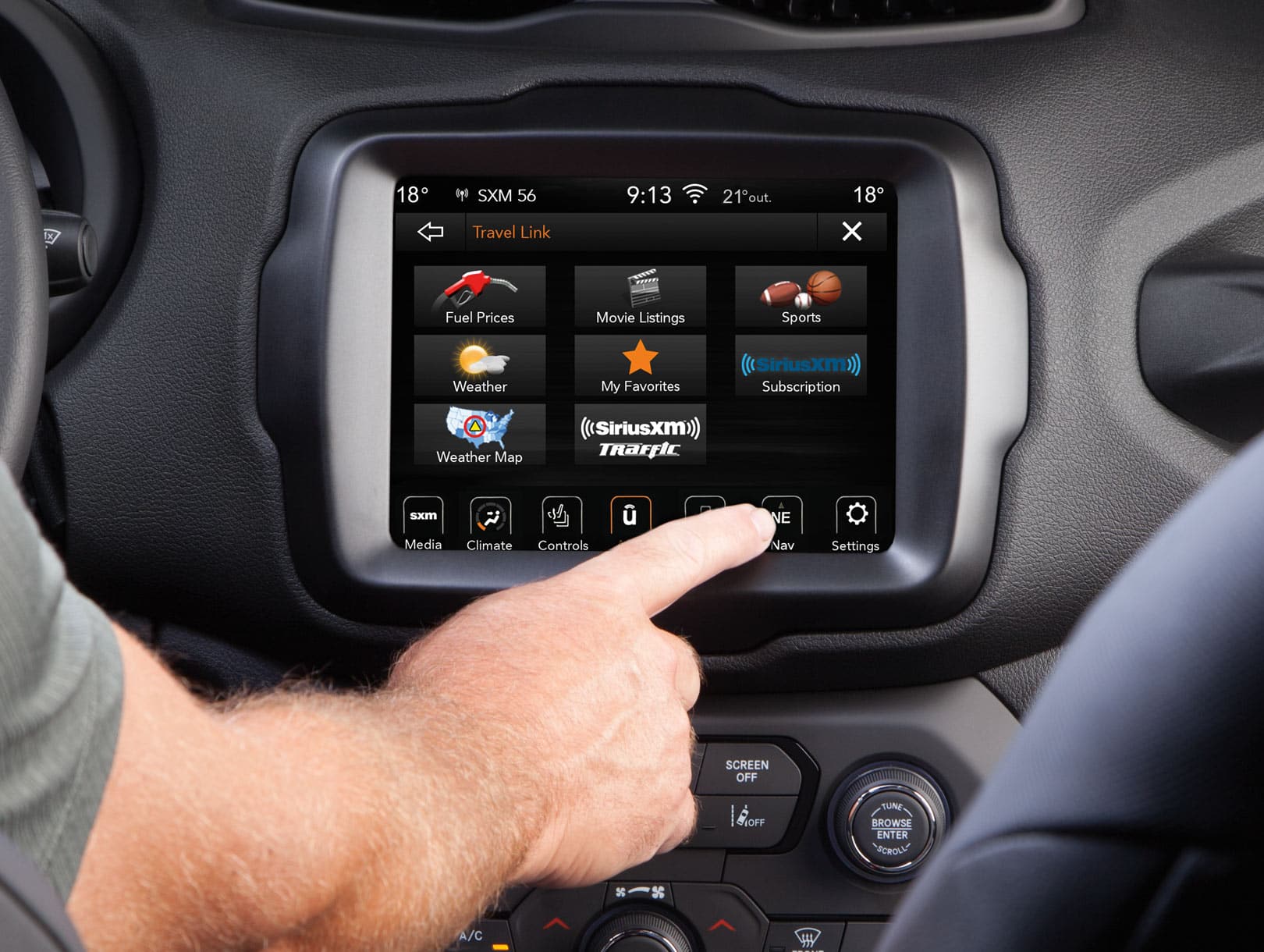
What’s New With Each Update?
Each Uconnect update brings improvements. Here’s a sample of recent upgrades:
| Version | Main Features | Release Year |
|---|---|---|
| 18.45.01 | Improved Bluetooth, bug fixes | 2018 |
| 20.25.02 | Better navigation, faster response | 2020 |
| 22.06.10 | Security patch, new apps | 2022 |
If you notice new icons or faster loading after an update, these are likely from the latest software. Many drivers miss these small changes, but they can make daily driving easier.
Tips For A Successful Update
To avoid problems and save time, follow these tips:
- Use a quality USB drive with no other files.
- Keep your Jeep’s battery charged or engine running.
- Download the correct update for your model and year.
- Check for updates at least twice a year.
- After updating, restart the system to ensure changes take effect.
Most people forget to restart Uconnect after an update, which can cause glitches. Also, some updates require you to re-pair your phone or reset settings.

Frequently Asked Questions
How Often Should I Update Uconnect?
Most experts recommend checking for updates every 6 months. This keeps your system current and safe.
Can I Update Uconnect At Home?
Yes, both OTA and USB updates can be done at home. Just make sure you follow the instructions and use a reliable USB drive if needed.
Will Updating Erase My Settings?
Usually, updates do not erase settings or saved contacts. But it’s smart to back up your preferences before updating.
What If My Jeep Is Older Than 2017?
Older Jeeps usually require the USB update method. The process is simple but takes a bit more time.
Where Can I Find The Latest Uconnect Updates?
The official Uconnect update site is the best source: Drive Uconnect. Enter your VIN to see available updates.
Updating Uconnect is a quick job that makes a big difference in your daily driving. With these steps, your Jeep’s infotainment will stay fast, safe, and ready for anything. If you ever have trouble, Jeep’s support and community forums are helpful resources.
Regular updates keep your system running smoothly and help you enjoy all the features your Jeep offers.