Connecting your smartphone or device to Uconnect in your Jeep Wrangler can transform your driving experience. This advanced infotainment system lets you access navigation, music, hands-free calling, and apps right from your dashboard. Many Jeep owners want to use Uconnect but aren’t sure how to get started or what features to expect. In this guide, you’ll learn how to connect to Uconnect step-by-step, see which features matter most, and get practical tips to avoid common mistakes. Whether you’re new to Uconnect or looking for better ways to use it, this article will help you feel confident.
Understanding Uconnect In Jeep Wrangler
Uconnect is Jeep’s official infotainment system. It is available in most modern Jeep Wranglers, especially models from 2018 onward. Uconnect combines touchscreen controls, Bluetooth connectivity, and voice commands to make driving safer and more enjoyable.
There are different versions of Uconnect, including Uconnect 4 and Uconnect 5. Each offers slightly different features and interfaces. The most common screen sizes are 7-inch and 8.4-inch. Below is a quick comparison:
| Feature | Uconnect 4 | Uconnect 5 |
|---|---|---|
| Touchscreen Size | 7″, 8.4″ | 7″, 8.4″, 10.1″ |
| Apple CarPlay & Android Auto | Wired | Wireless |
| Voice Commands | Basic | Advanced |
| Navigation | Optional | Optional + Enhanced |
Knowing which version you have makes connecting easier. Most 2022 and newer Wranglers use Uconnect 5.
Preparing To Connect: What You Need
Before you start, make sure you have:
- Your Jeep Wrangler with Uconnect enabled
- A smartphone (Android or iOS)
- A USB cable (for wired connections)
- Bluetooth turned on
- Your Uconnect system powered on
Also, check that your phone’s software is up to date. Older phones may have trouble pairing, especially with newer Uconnect versions.

Step-by-step: Connecting Your Device To Uconnect
Connecting Via Bluetooth
- Turn on your Jeep Wrangler and the Uconnect system.
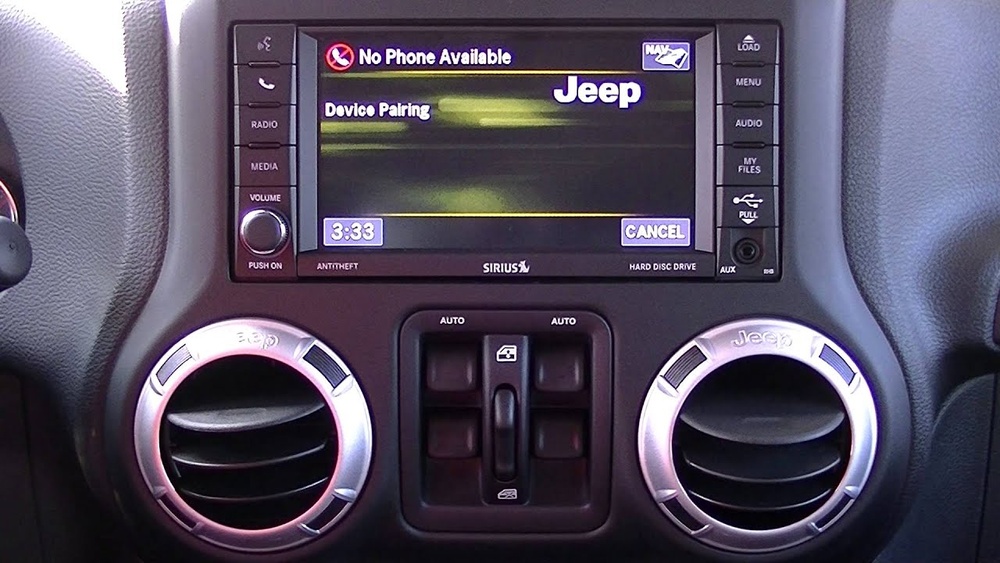
- On the Uconnect screen, tap the “Phone” icon.
- Select “Pair a Device.” The system will display a pairing code.
- On your phone, go to Bluetooth settings and select “Uconnect.”
- Confirm the pairing code matches and tap “Pair” on your phone.
- The Uconnect screen will show your device as connected.
Bluetooth lets you make calls, stream music, and use some apps hands-free.
Connecting Via Usb For Apple Carplay Or Android Auto
- Plug your phone into the USB port using a compatible cable.
- The Uconnect screen will show a prompt for Apple CarPlay or Android Auto.
- Tap the prompt to activate.
- Follow any on-screen instructions to allow access.
For wireless CarPlay or Android Auto (Uconnect 5), just enable Bluetooth and Wi-Fi, then select the option on the Uconnect screen.
Troubleshooting Tips
If your device doesn’t connect:
- Restart your phone and Uconnect system
- Check for system updates on both devices
- Remove old paired devices from Uconnect
- Use an official USB cable (cheap cables often cause issues)
Many beginners miss that Uconnect only pairs with one device at a time. If you try to connect two phones, the system can get confused.
Key Features After Connecting
With your device connected, you can use many features:
- Hands-free calling: Use voice commands or steering wheel buttons.
- Text message access: Listen to messages and reply by voice.
- Navigation: Access maps from your phone or Uconnect’s built-in GPS.
- Music streaming: Play songs from apps like Spotify, Pandora, or Apple Music.
Here’s a quick feature comparison for connected devices:
| Feature | Bluetooth | Apple CarPlay/Android Auto |
|---|---|---|
| Calls | Yes | Yes |
| Music Apps | Limited | Full Access |
| Navigation | No | Yes |
| Voice Commands | Basic | Advanced |
| Messaging | Read only | Reply & read |
Many drivers don’t realize that CarPlay/Android Auto gives more app access than Bluetooth. If you want navigation or advanced messaging, use USB or wireless connection.

Common Mistakes And How To Avoid Them
- Using a low-quality USB cable: Always use original cables. Cheap ones often fail.
- Trying to connect multiple devices: Uconnect works best with one active connection.
- Ignoring software updates: Update your phone and Uconnect for smooth operation.
- Overlooking privacy settings: Allow Uconnect access to contacts and messages for full features.
- Forgetting to enable Wi-Fi (Uconnect 5 only): Wireless CarPlay/Android Auto needs both Bluetooth and Wi-Fi on.
A non-obvious tip: If your Uconnect system freezes, hold the power and volume buttons for 10 seconds to reboot.
Uconnect App: Extra Convenience
The Uconnect app offers remote access for Jeep owners. You can lock/unlock doors, start your engine, and check vehicle health from your smartphone. To use the app:
- Download it from the App Store or Google Play
- Register your Jeep Wrangler VIN
- Pair with your Uconnect account
This app is especially useful for cold mornings or busy parking lots.
For more details, Jeep’s official site has up-to-date information: Jeep Uconnect.
Frequently Asked Questions
How Do I Know Which Uconnect Version My Jeep Wrangler Has?
Check your Jeep’s manual or look for the Uconnect version at startup. The screen size and interface also give clues. Most 2018–2021 Wranglers have Uconnect 4, while 2022 and newer usually have Uconnect 5.
Can I Connect More Than One Device At The Same Time?
No, Uconnect supports only one active device connection. You can switch between devices, but only one will be connected for calls or apps.
Is Wireless Apple Carplay Available In All Jeep Wranglers?
Wireless CarPlay is available on newer models with Uconnect 5. Older Wranglers use wired connections only.
Why Does My Phone Fail To Connect Sometimes?
Common reasons include outdated software, poor-quality cables, or too many paired devices. Remove unused devices and update software for best results.
What Should I Do If Uconnect Freezes Or Doesn’t Respond?
Try rebooting the system by holding the power and volume buttons for 10 seconds. If issues persist, visit your Jeep dealer for help.
Getting your device connected to Uconnect Jeep Wrangler isn’t hard once you know the right steps. With Bluetooth and USB options, you can access navigation, music, and hands-free features easily. Avoiding common mistakes and using the Uconnect app will help you get the most from your Jeep’s technology. Whether you use your Wrangler for city driving or off-road adventures, Uconnect makes every journey safer and more enjoyable.