Updating your Jeep Uconnect system can make your driving experience smoother and safer. Many Jeep owners don’t realize how much a Uconnect update improves navigation, Bluetooth connectivity, and app support. Updates can fix bugs, add new features, and boost security. If you don’t update, you might miss important improvements and risk glitches. This guide will help you update your Uconnect quickly—even if you’re not tech-savvy.
What Is Jeep Uconnect?
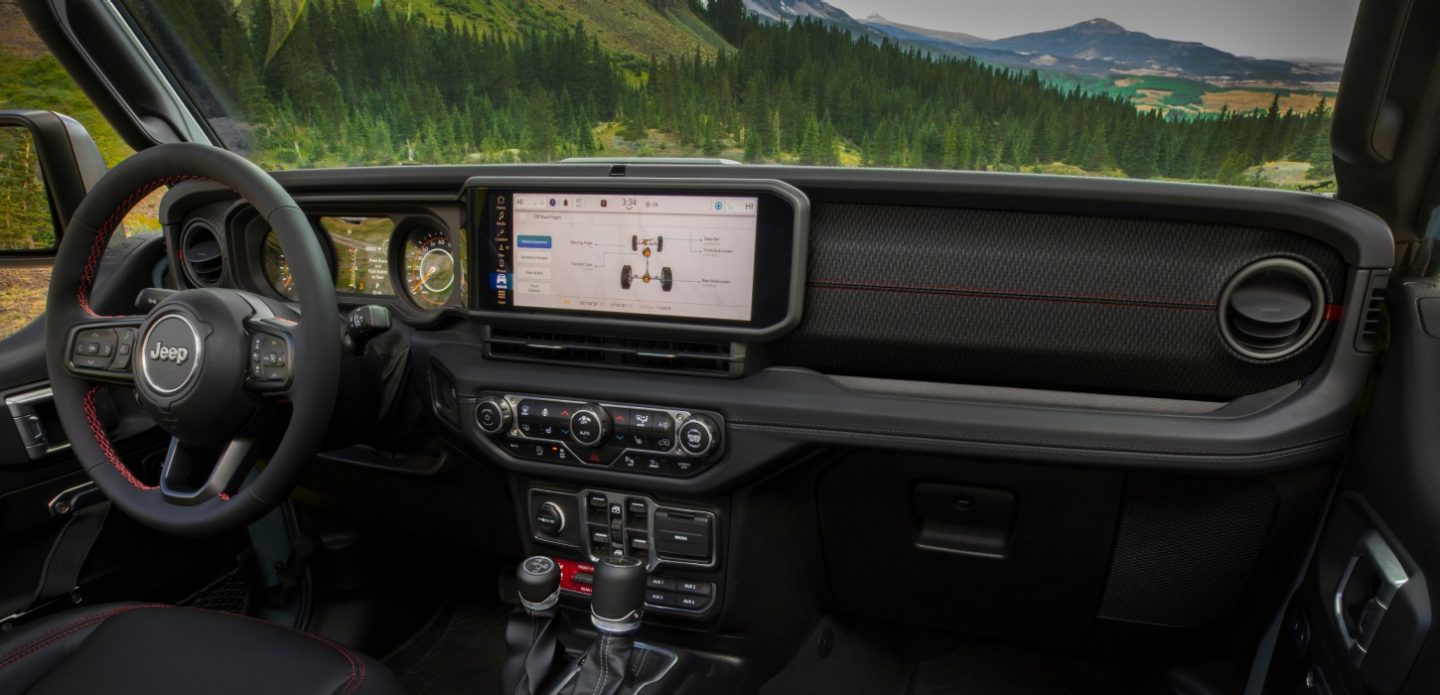
Uconnect is the infotainment system in many Jeep vehicles. It controls navigation, music, hands-free calling, climate, and more. Uconnect also connects your smartphone, so you can use apps like Apple CarPlay and Android Auto.
There are several Uconnect versions. For example, Uconnect 3 is basic, while Uconnect 5 has faster response and new features. Knowing your version is important because update steps can differ.
Why Should You Update Uconnect?
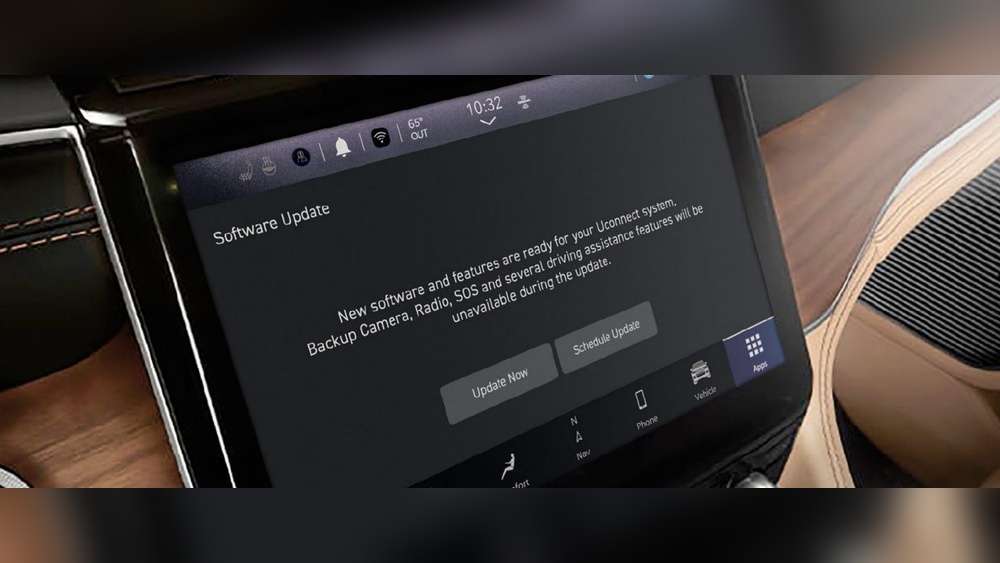
Many drivers skip Uconnect updates. But staying current has clear benefits:
- Bug fixes: Updates solve problems from earlier versions.
- New features: You get the latest maps, apps, and tools.
- Better security: Updates protect your personal info.
- Improved performance: Faster system and smoother controls.
In 2023, Jeep released updates that fixed Bluetooth issues and improved map accuracy. Not updating can mean your system lags or loses connections.
How To Check Your Uconnect Version
Before updating, find out which Uconnect version you have. Here’s how:
- Turn on your Jeep.
- Press the “Settings” button on the Uconnect screen.
- Find “System Information” or “About.”
- Look for the software version number.
Compare your version to the latest one listed on the Jeep website or your dealer’s site.
Step-by-step: Updating Jeep Uconnect
Updating Uconnect can be easy if you follow the right steps. There are two main ways: over-the-air (OTA) and USB update.
Over-the-air (ota) Update
Many newer Jeeps support OTA updates. Your car downloads updates automatically when connected to Wi-Fi.
- Connect your Jeep to a stable Wi-Fi network. Use your home or garage Wi-Fi.
- Go to “Settings” > “Wi-Fi” on your Uconnect screen.
- If there’s an update, the system will prompt you. Accept and follow the instructions.
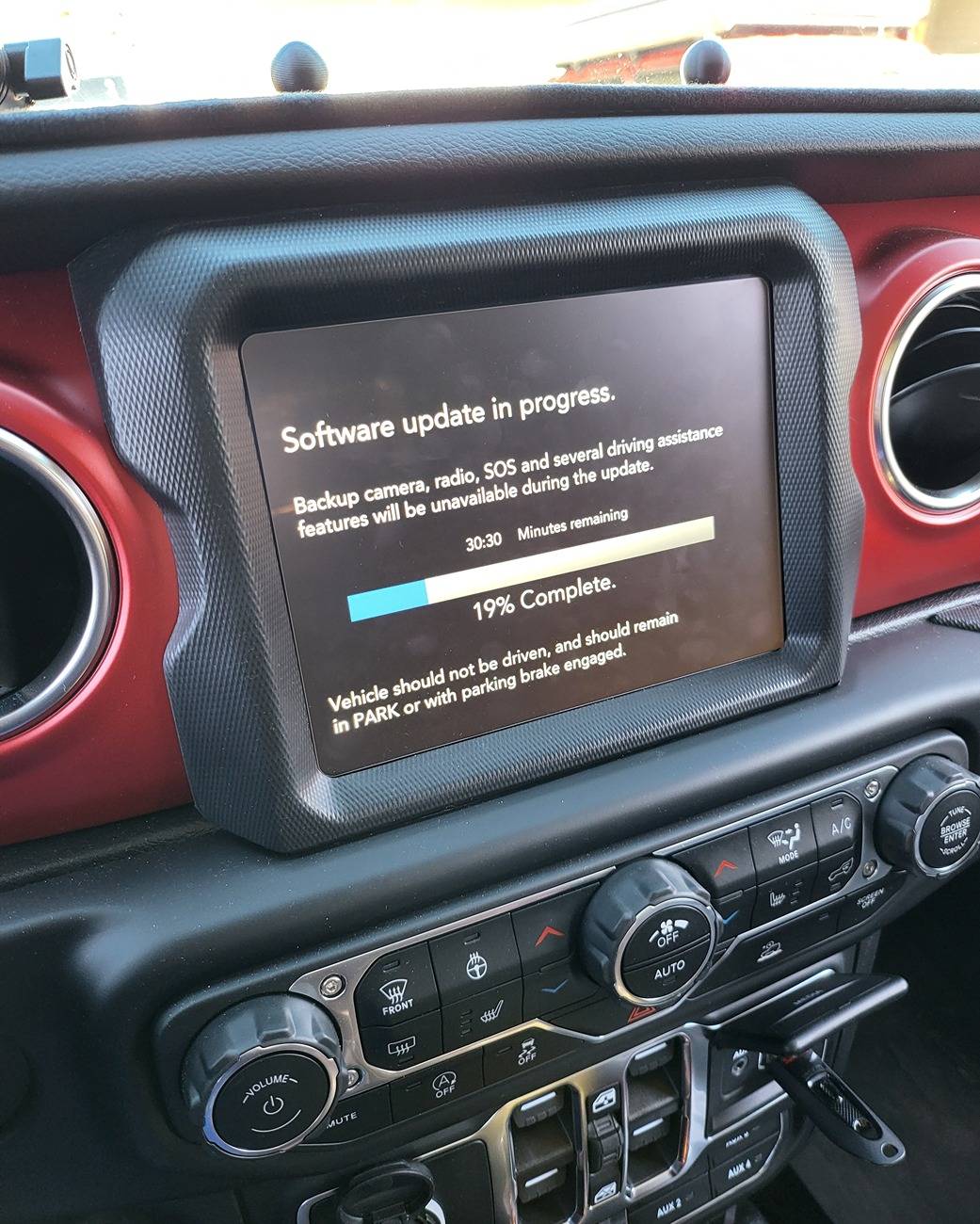
- Wait for the update to finish. This can take 15–30 minutes.
Tip: Keep your car running during the update to avoid interruptions.
Usb Update
Older Jeeps or some models need a USB stick update. Here’s how:
- Go to the official Uconnect update page: Uconnect Software Updates.
- Enter your Jeep’s VIN to check for updates.
- Download the update file to your computer.
- Copy the file to a clean USB drive (at least 8GB).
- Turn on your Jeep and insert the USB into the Uconnect port.
- Follow on-screen instructions to start the update.
- Wait until the update finishes.
If the system doesn’t detect the USB, try reformatting your drive or using a different port.
Dealer Update
Sometimes, your Jeep needs a dealer-only update. This is common for major upgrades or fixes. Dealers have tools to update Uconnect fast. Ask your dealer if you’re unsure.
Comparing Update Methods
Here’s a quick look at the differences between OTA and USB updates:
| Update Method | Speed | Ease | Best For |
|---|---|---|---|
| OTA | Fast (15–30 min) | Very Easy | New Jeeps |
| USB | Medium (30–60 min) | Moderate | Older Jeeps |
| Dealer | Varies | Easy (for owner) | Complex updates |
Common Problems And Solutions
Updating Uconnect isn’t always smooth. Here are some issues and how to fix them:
- Update fails: Restart your car and try again. Check your internet or USB drive.
- System freezes: Wait a few minutes. If it stays frozen, disconnect the battery for 10 seconds.
- Loss of settings: After some updates, you may lose saved radio stations or phone connections. Re-enter them after the update.
Non-obvious insight: Many owners forget to check their VIN for compatibility. Using the wrong update file can damage the system.
Practical Tips For A Successful Update
- Use a high-quality USB drive—cheap drives often cause errors.
- Make sure your car battery is strong. Weak batteries can interrupt updates.
- Back up your contacts and settings before updating.
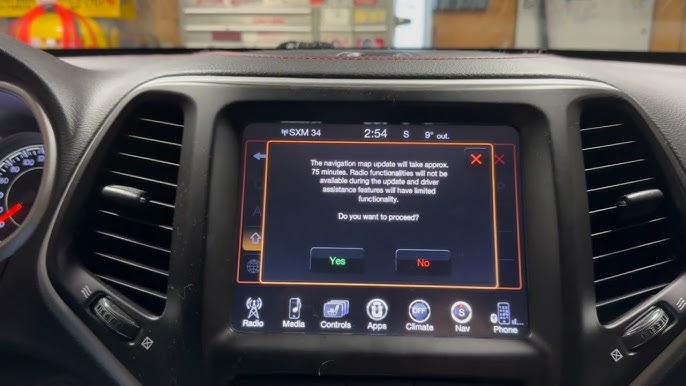
- Don’t update while driving. Always update parked.
Another non-obvious tip: Some updates require your Jeep to be in “Run” mode, not “Accessory.” Always follow instructions on the screen.
Real-world Example
In 2022, a Jeep Grand Cherokee owner reported slow Bluetooth pairing. After a USB update, pairing was instant and phone calls were clearer. This shows how updates can solve annoying daily problems.
Uconnect Version Features
Knowing what each Uconnect version offers helps you decide if an update is worth it. Here’s a comparison:
| Uconnect Version | Main Features | Update Support |
|---|---|---|
| Uconnect 3 | Basic radio, limited Bluetooth | USB only |
| Uconnect 4 | Touchscreen, improved apps | USB/OTA |
| Uconnect 5 | Faster, wireless CarPlay/Android Auto | OTA |
Frequently Asked Questions
How Often Should I Update Uconnect?
Update every 6–12 months, or when you see a prompt. Some updates fix urgent bugs, so don’t delay.
Can I Use Any Usb Drive For Updates?
No. Use a clean USB drive with at least 8GB storage. Avoid drives with other files or old partitions.
Will Updating Uconnect Erase My Settings?
Sometimes. It’s smart to back up your contacts, radio stations, and Bluetooth pairings before updating.
What If My Jeep Doesn’t Support Ota Updates?
Use the USB method or visit your dealer. Most Jeeps built before 2020 don’t support OTA.
Is Updating Uconnect Free?
Yes, updates from Jeep are free. Dealers may charge for labor if they do the update for you.
Updating your Jeep Uconnect keeps your vehicle running better and safer. It’s simple if you follow the steps and tips above. Stay current to enjoy the best features and avoid problems. For more detailed info, check the official Jeep Uconnect site or talk to your dealer.