Using your Jeep navigation system can make every journey smoother and more enjoyable. Whether you drive a Wrangler, Grand Cherokee, or Compass, the built-in navigation helps you reach your destination with less stress. Many drivers, though, don’t use all its features, missing out on time-saving tools and safety benefits. This guide will show you how to set up, customize, and get the most out of your Jeep’s navigation system, even if you’re new to in-car GPS.
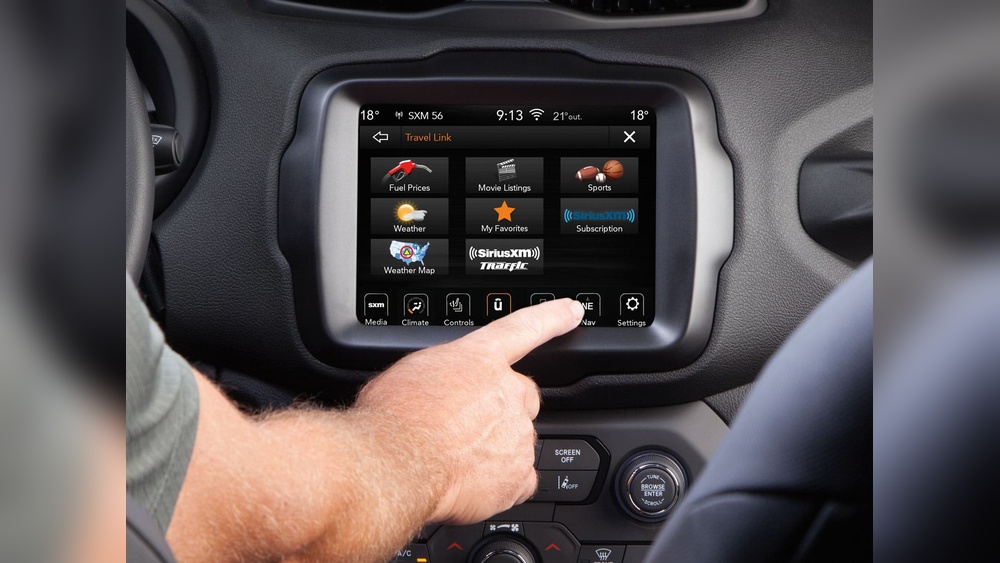
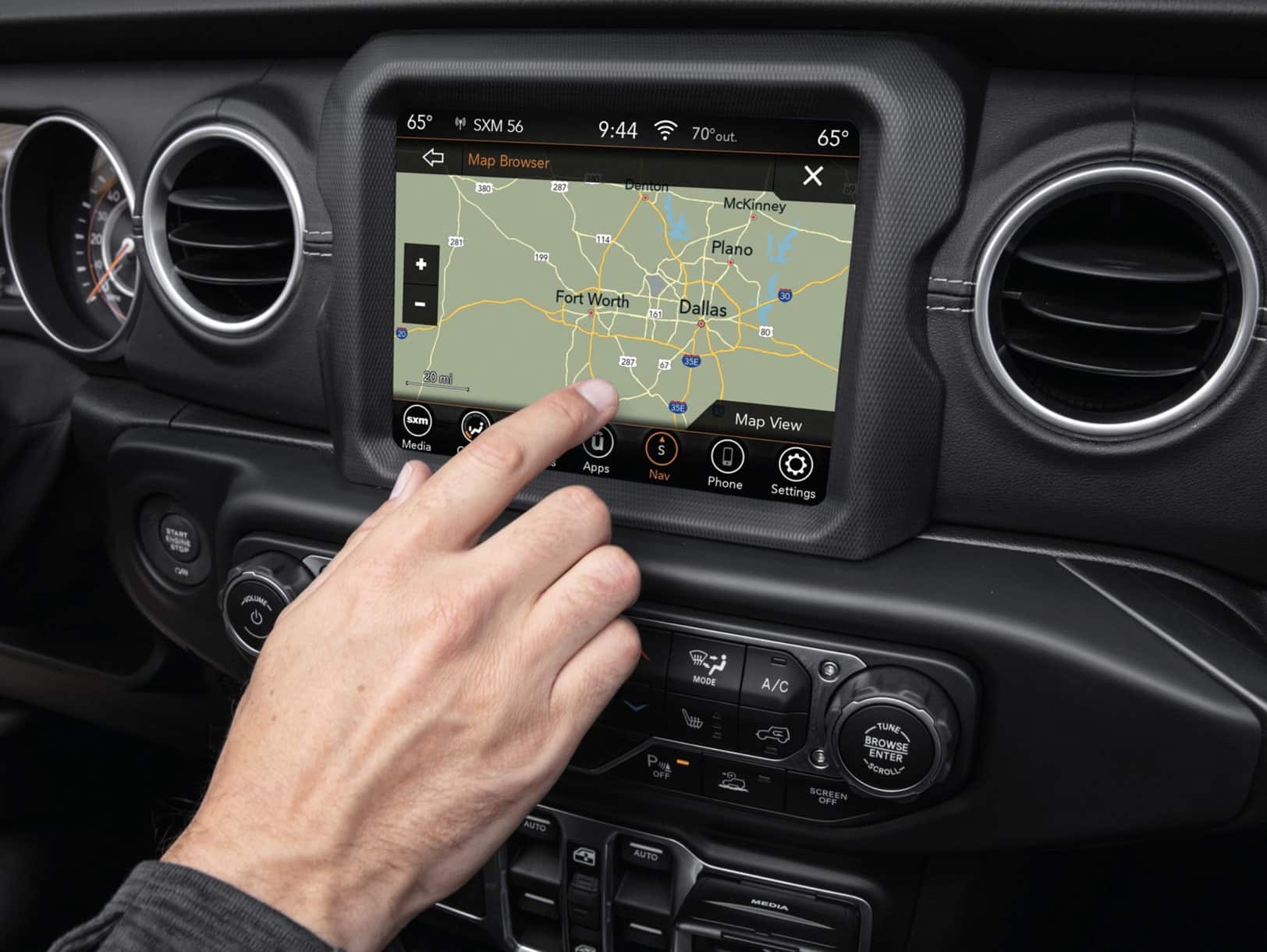
Most newer Jeep vehicles come with Uconnect, the infotainment system that includes navigation. Before you start, park your vehicle safely and turn on the ignition. The screen will light up, and you’ll see the main menu.
- Locate the Navigation Button: Look for a button labeled “Nav” or “Map” on your touchscreen or dashboard.
- First Setup: The system may ask you to accept terms or set your language. Follow the prompts with simple touches.
If your Jeep uses a different system or has an upgraded package, check your owner’s manual for unique instructions.
Entering A Destination
Setting a destination is one of the most-used navigation features.
- Tap the “Where To?” or “Search” button.
- Enter an address, point of interest, or business name.
- Suggestions will appear as you type. Select the correct one.
- Choose “Go” to start route guidance.
You can also use voice commands. Press the voice button on your steering wheel and say, “Navigate to [address or place].” This is especially helpful while driving.
Example: Entering A Restaurant
Suppose you want to find a nearby Italian restaurant. Simply tap “Points of Interest,” select “Food,” and choose “Italian. ” The system lists options with distances.

Understanding The Map And Directions
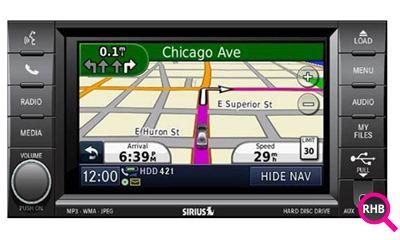
Jeep’s navigation system displays a dynamic map that updates as you drive. You’ll see your route, next turn, and estimated arrival time.
Map Views:
- 2D North Up: Traditional map view.
- 2D Heading Up: Map rotates as you turn.
- 3D Perspective: Gives a more realistic look.
Switch between views using the map settings icon. Some Jeep models also display lane guidance, showing which lane you should be in for your next turn.
Here’s a quick comparison of the map views:
| View | Best For | How To Enable |
|---|---|---|
| 2D North Up | General navigation | Map settings > 2D North Up |
| 2D Heading Up | City driving | Map settings > 2D Heading Up |
| 3D Perspective | Highways, complex roads | Map settings > 3D |
Customizing Your Route
Jeep navigation offers route options, including fastest, shortest, and eco-friendly routes. To change your preference:
- After entering your destination, tap “Route Options” or the gear icon.
- Choose your preferred route type.
You can avoid toll roads, highways, or ferries by toggling options in the same menu.
Example: Avoiding Tolls
If you want to avoid toll roads, select the “Avoid Tolls” option before starting guidance. The system recalculates a new route instantly.
Live Traffic And Updates
Many Jeep navigation systems offer live traffic data. This helps you avoid jams, construction, or accidents.
- Green roads: Traffic is flowing.
- Yellow/Red roads: Expect slowdowns or stop-and-go.
To get the most accurate updates, connect your system to the internet using your phone’s hotspot or built-in cellular connection.
Here’s how traffic updates improve your trip:
| Scenario | Without Live Traffic | With Live Traffic |
|---|---|---|
| Morning commute | Stuck in unexpected delays | Rerouted around congestion |
| Long road trip | Missed accident warnings | Advanced detour alerts |
Using Voice Commands
Voice commands let you operate navigation hands-free, improving safety and comfort. Press the voice button (usually on the steering wheel) and speak clearly.
Common voice commands:
- “Find nearest gas station.”
- “Navigate to 123 Main Street.”
- “Show route overview.”
If the system doesn’t understand, speak slowly and avoid background noise. Many beginners don’t realize you can adjust the microphone’s sensitivity in the settings for better accuracy.
Updating Maps
Out-of-date maps can lead to wrong directions. Jeep recommends updating your navigation maps once a year. Updates are available online or at dealerships. Some newer models update automatically over Wi-Fi.
Steps to update:
- Go to the system’s Settings.
- Look for Map Update or Navigation Update.
- Follow prompts to download and install.
If you travel often or live in a fast-growing area, more frequent updates may help.
Tips For Better Use
Here are some practical tips to get the most from your Jeep navigation system:
- Set up home and work addresses for quick access.
- Zoom in/out on the map to see more or less detail.
- Save favorite places like friends’ homes or favorite stores.
- Check traffic before leaving to plan better.
- Pair your phone with Bluetooth for hands-free calls and navigation integration.
Many users overlook the power of the “Favorites” feature. Saving locations cuts setup time on future trips and ensures you won’t have to re-enter addresses.
Common Issues And Fixes
If your navigation isn’t working as expected, try these steps:
- System won’t start: Restart your Jeep or check the fuse.
- GPS signal lost: Drive to an open area away from tall buildings or trees.
- Touchscreen freezes: Hold the power button for 10 seconds to reset.
For ongoing problems, a dealership technician can help. Sometimes, issues are caused by outdated software, so regular system updates are important.
Safety Reminders
Never enter destinations while driving. Use voice commands or stop your vehicle. The navigation system is a tool, but always stay aware of road signs and changing conditions.
Frequently Asked Questions
Jeep’s navigation is very accurate for most city and highway driving. However, it may miss new roads or recent changes if maps aren’t updated.
Can I Use Apple Carplay Or Android Auto Instead?
Yes, many newer Jeeps support Apple CarPlay and Android Auto. These let you use Google Maps or Apple Maps on your Jeep’s screen, but some features like off-road navigation may be limited.
You can update maps by connecting to Wi-Fi or using a USB drive. Detailed steps are in your owner’s manual or on the Jeep Uconnect support page.
First, restart your vehicle and try again. If the problem continues, reset the system or visit your dealership for service.
Some Jeep models with specialized packages offer off-road navigation. These show trails and terrain features. Check your system or ask your dealer if this feature is included.
Using your Jeep’s navigation system makes driving easier, safer, and more enjoyable. Spend a few minutes learning its features, and you’ll save time and avoid frustration on every trip.