Pairing your phone with your Jeep Wrangler’s Bluetooth opens up a world of convenience. You can make hands-free calls, stream music, and use voice commands. But many Wrangler owners, especially new ones, find the process confusing. This guide will help you connect your phone to your Jeep Wrangler’s Bluetooth quickly and easily.
You’ll also find solutions for common pairing problems and tips to make the most of your Jeep’s technology.
Preparing Your Jeep Wrangler And Phone
Before you start, make sure your Jeep Wrangler has Bluetooth capability. Most models from 2011 onward include Bluetooth, but older ones may not. Check your owner’s manual or look for a Uconnect system on your dashboard. Also, confirm your phone’s Bluetooth is turned on and updated.
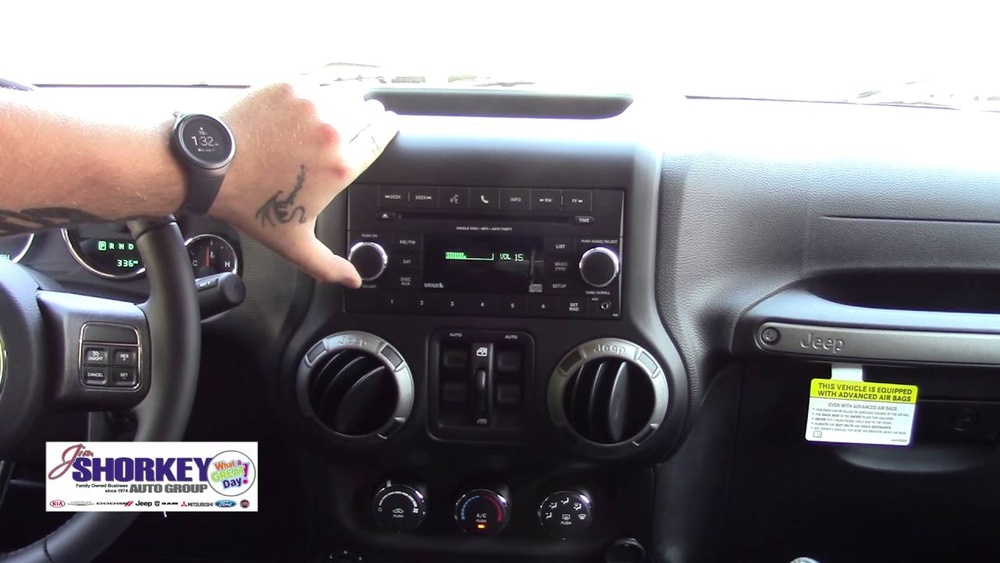
Here’s a quick comparison of Bluetooth features by Jeep Wrangler model year:
| Model Year | Bluetooth Support | Uconnect Version |
|---|---|---|
| 2011-2014 | Basic hands-free calling | Uconnect 130/430 |
| 2015-2017 | Hands-free + music streaming | Uconnect 430/730 |
| 2018-present | Advanced features (voice, apps) | Uconnect 4/4C/4C NAV |
You’ll need your phone nearby, with Bluetooth enabled. If your phone is low on battery, charge it first, because pairing can drain the battery quickly.
Step-by-step: Pairing Your Phone To Jeep Wrangler Bluetooth
- Start your Jeep and keep it in Park. Many systems do not allow pairing while driving.
- Activate Bluetooth on your phone. Go to Settings > Bluetooth and make your phone “discoverable.”
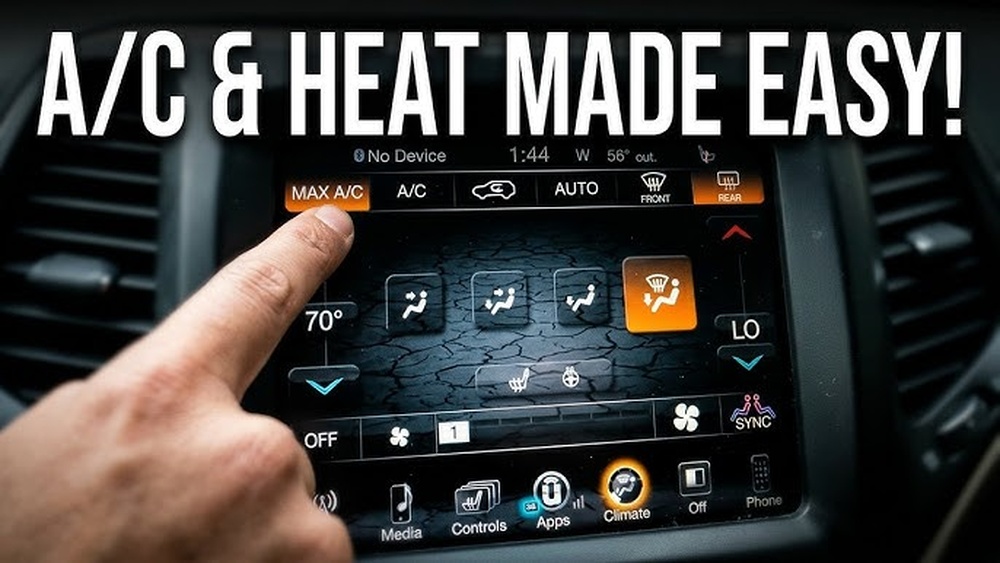
- On your Jeep’s dashboard, press the Phone button or tap “Settings” if you have a touch screen.
- Select “Pair a Device” or “Add Device.”
- Your Jeep’s system should show a list of available devices. Select your phone’s name.
- A PIN code will appear on the Jeep screen and your phone. Make sure the codes match, then tap “Pair” or “OK” on your phone.
- Wait for confirmation. The Jeep screen will show “Connected,” and your phone may display the same.
If your phone asks for permissions (like access to contacts or messages), allow them for full functionality.
Example: Pairing With Uconnect 4 (2018+)
- Press the Phone icon on the touchscreen.
- Choose “Add Device.”
- On your phone, select “Jeep Wrangler” from available Bluetooth devices.
- Confirm the PIN code matches.
- Allow access to contacts for hands-free calling.
What If Pairing Fails?
If pairing doesn’t work, try these steps:
- Restart your phone and Jeep’s infotainment system.
- Delete old devices from Uconnect.
- Update your phone’s software.
- Move your phone closer to the dashboard.
Most pairing issues are fixed by restarting both devices and removing old connections.

Features Available After Pairing
Once your phone is paired, you can use several features:
- Hands-free calling: Make and receive calls without touching your phone.
- Music streaming: Play music from Spotify, Apple Music, or other apps.
- Voice commands: Use voice to control navigation, calls, and texts.
- Text message access: Some models let you read and reply to texts hands-free.
Here’s a comparison of what you get with different Uconnect versions:
| Uconnect Version | Hands-Free Calls | Music Streaming | Voice Control | Text Messaging |
|---|---|---|---|---|
| 130/430 | Yes | No | No | No |
| 430/730 | Yes | Yes | Limited | No |
| 4/4C/4C NAV | Yes | Yes | Yes | Yes |
Common Mistakes And Solutions
Many beginners miss these points:
- Forgetting to allow permissions: Without access to contacts, calling features are limited.
- Trying to pair while driving: Uconnect only allows pairing while parked for safety.
- Pairing with too many devices: Uconnect can remember several devices, but too many can cause confusion. Remove unused phones.
If you switch phones often, clear the device list every few months. Keeping your Bluetooth list tidy prevents errors.
Another mistake is not updating your phone. Bluetooth standards change, and updates fix bugs. Always keep your phone’s software current.

Tips For Better Bluetooth Experience
- Set your phone as the “primary” device in Uconnect for faster connection.
- Turn off Bluetooth on other nearby devices to avoid interference.
- If your music doesn’t play, switch audio source on the Jeep’s dashboard to “Bluetooth.”
- For voice commands, speak clearly and wait for the beep before talking.
For privacy, you can disable text message access if you don’t want messages read aloud.
Troubleshooting Uncommon Problems
Some users find their phone connects but audio does not play. This usually happens with Android devices. The fix is to set Bluetooth as audio output in your phone’s settings.
If you hear static or poor quality, check for interference from other electronics or Wi-Fi networks. Move devices apart or switch off unused gadgets.
Here’s a quick look at common Bluetooth issues and solutions:
| Issue | Cause | Solution |
|---|---|---|
| No audio | Wrong audio source | Switch Jeep’s audio to Bluetooth |
| Can’t pair | Old device list | Remove old phones from Uconnect |
| Static | Interference | Move devices or turn off Wi-Fi |
| Missing features | Permissions not allowed | Allow all permissions on phone |

Frequently Asked Questions
How Many Phones Can I Connect To My Jeep Wrangler?
Most Jeep Wranglers can store up to seven devices in the Uconnect system. However, only one can be active at a time.
Can I Stream Music From Any App?
Yes, you can stream music from Spotify, Apple Music, or other apps, as long as your Uconnect version supports audio streaming.
Why Won’t My Phone Connect Automatically?
If your phone does not connect when you start your Jeep, make sure Bluetooth is on and set your phone as the “primary” device in Uconnect. Restarting both devices can also help.
Is My Data Safe When Using Bluetooth?
Bluetooth connections are generally safe. Uconnect uses secure pairing codes. For extra privacy, turn off message access or clear your device list regularly.
Where Can I Find Official Instructions?
You can find step-by-step pairing guides and troubleshooting advice on the official Jeep Uconnect website.
Pairing your phone to your Jeep Wrangler’s Bluetooth takes just a few minutes, but the benefits last much longer. With hands-free calling, music streaming, and voice commands, your driving experience becomes safer and more enjoyable. If you follow these steps and tips, you’ll enjoy a smooth Bluetooth connection every time you get behind the wheel.