If you just bought a Jeep with the Uconnect system, you’re probably excited to try its features. Uconnect makes your vehicle smarter with navigation, smartphone integration, media streaming, and even remote controls. But before you can enjoy these, you need to know how to activate Uconnect in your Jeep. Many first-time owners face confusion around the setup—especially with different Jeep models and Uconnect generations. This guide breaks down the steps, answers common questions, and gives you tips you won’t find in the user manual.
Understanding Uconnect: What Makes It Special?
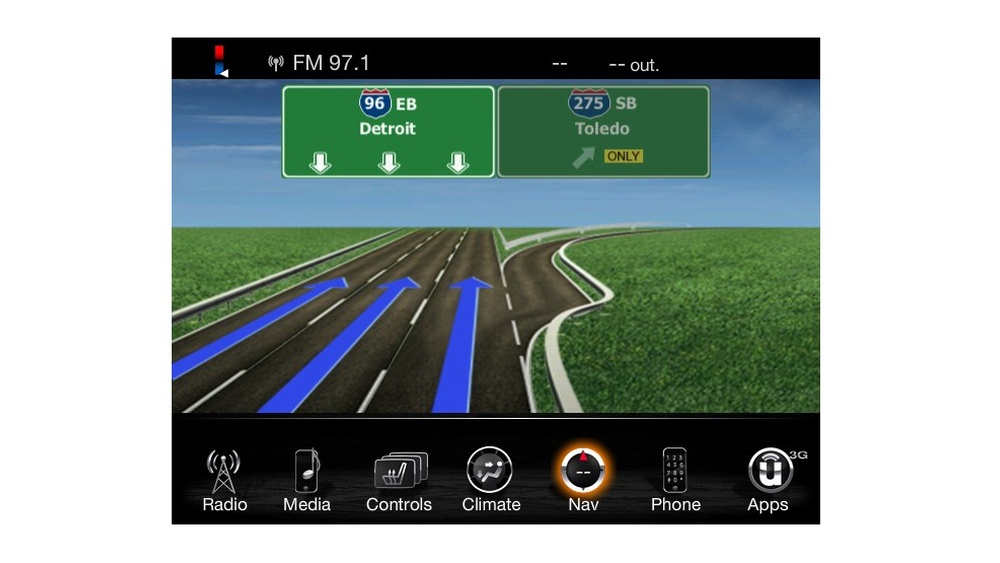
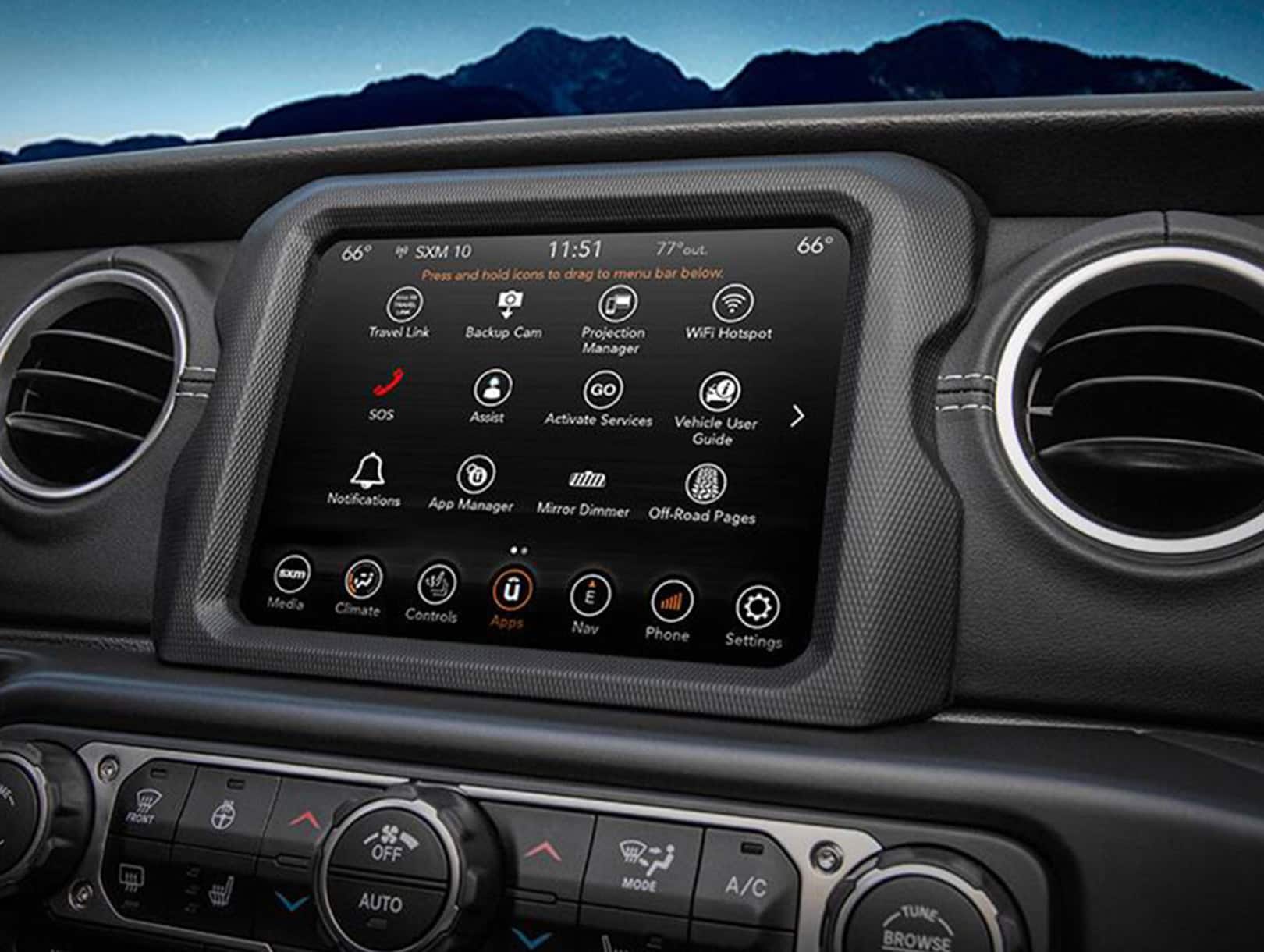
Uconnect is the infotainment system found in many Jeep vehicles. It combines touchscreen controls, voice commands, and connectivity services to make driving safer and more enjoyable. Features may include:
- Navigation: Built-in maps and real-time traffic updates.
- Bluetooth: Hands-free calling and audio streaming.
- Apple CarPlay/Android Auto: Use smartphone apps on your Jeep’s display.
- Wi-Fi hotspot: Turns your Jeep into a mobile internet hub.
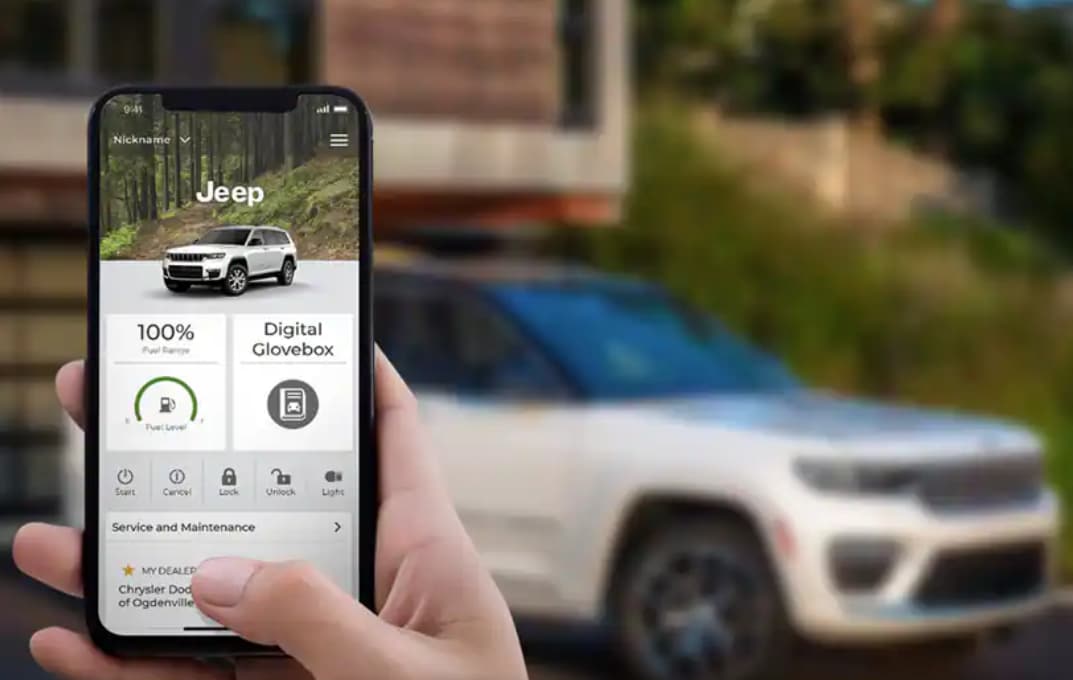
- Remote vehicle access: Lock, unlock, or start your Jeep from your phone.
Not all features are available in every Jeep or Uconnect version. Before activation, check your Jeep’s manual for supported features.
How To Activate Uconnect Jeep: Step-by-step Guide
Activating Uconnect can be quick if you follow the right process. Here’s how to get your Uconnect system up and running.
1. Prepare Your Jeep
- Start your engine. Uconnect setup requires your Jeep to be on.
- Find the touchscreen. Most Jeeps have the Uconnect display in the center console.
2. Create A Uconnect Account
- Go to the Uconnect website or download the Uconnect app on your smartphone.
- Enter your Jeep’s Vehicle Identification Number (VIN)—find it on the dashboard near the windshield or your registration papers.
- Complete the registration by entering your email and creating a password.
3. Connect Your Jeep To The Internet
- On the Uconnect touchscreen, select “Settings.”
- Choose “Wi-Fi” or “Network,” then follow prompts to connect to a Wi-Fi hotspot. Some newer Jeeps can use a built-in cellular connection.
- This step is important for software updates and remote features.
4. Pair Your Smartphone
- On your phone, enable Bluetooth.
- In the Uconnect menu, tap “Phone,” then “Add Device.”
- Select your Jeep from your phone’s Bluetooth list and confirm the pairing code.
5. Activate Services
- Log in to your Uconnect account on the touchscreen or app.
- Follow on-screen prompts to activate services (like SiriusXM Guardian or remote start).
- Some services offer a free trial; others may require a subscription.
6. Test Key Features
After activation, check if these features work:
- Navigation loads and updates traffic.
- Phone calls can be made hands-free.
- Music streaming from your phone or apps works.
- Remote commands (lock/unlock) are responsive via the app.
If any feature doesn’t work, check your cellular signal or Wi-Fi and repeat the steps.
Comparing Uconnect Versions And Jeep Models
Uconnect has several versions, and features depend on your Jeep model year. Here’s a quick comparison:
| Uconnect Version | Screen Size | Key Features |
|---|---|---|
| Uconnect 3 | 5-8.4 inches | Basic navigation, Bluetooth, voice commands |
| Uconnect 4 | 7-8.4 inches | Apple CarPlay, Android Auto, touchscreen updates |
| Uconnect 5 | 8.4-12.3 inches | Faster processing, Alexa, wireless CarPlay/Android Auto |
Some older Jeeps may have Uconnect 3, while 2021 and newer models usually have Uconnect 5.
Common Activation Issues And Solutions
Many Jeep owners face problems when activating Uconnect. Here’s how to solve them:
| Problem | Cause | Solution |
|---|---|---|
| Cannot connect to Wi-Fi | Weak signal or wrong password | Move closer to router or double-check password |
| Bluetooth pairing fails | Old phone software | Update phone’s OS and restart both devices |
| Remote services not working | Subscription not activated | Log in to Uconnect account and activate or renew service |
Tip: If you keep having trouble, a dealer can reset your Uconnect system.

Useful Tips For A Smoother Uconnect Setup
- Use a strong Wi-Fi signal during activation for faster updates.
- Update your smartphone’s OS before pairing; older software can cause connection issues.
- Write down your Uconnect account info somewhere safe. You’ll need it for subscriptions and troubleshooting.
- Check for Jeep recalls or software updates—some problems are fixed by dealer updates.
- Explore the Uconnect app’s settings to customize notifications, privacy, and alerts.
Many people miss the importance of keeping their Uconnect system updated. Outdated software can stop key features from working, especially with phone integrations. Also, remember that some remote features need an active SiriusXM Guardian or similar subscription—free trials may expire without warning.
Subscription And Pricing Overview
Activating Uconnect is usually free, but some advanced features need a paid subscription. Here’s a snapshot of common services:
| Service | Free Trial Period | Monthly Price |
|---|---|---|
| SiriusXM Guardian | 12 months | $19.99 |
| Wi-Fi Hotspot | 3 months/1GB | $20.00 |
| Navigation Updates | None | Varies |
Always check the latest prices on the official Jeep or Uconnect site.
Security And Privacy Considerations
When activating Uconnect, you’re sharing data with Jeep and third-party providers. Choose strong passwords for your Uconnect account and review the privacy settings in your app. You can turn off location sharing or certain notifications if you prefer more privacy.
A non-obvious tip: factory reset your Uconnect system before selling your Jeep or trading it in. This removes your accounts and personal data, protecting your privacy.
For the latest details on features and privacy, see the official Jeep Uconnect page.
Frequently Asked Questions
How Long Does Uconnect Activation Take?
Activation usually takes 10-20 minutes if you follow the steps and have a good internet connection. Some remote services may need up to 24 hours to sync after activation.
Can I Activate Uconnect Without A Subscription?
Yes, you can use basic features like Bluetooth and basic navigation without a subscription. But for remote access and advanced services, you need an active plan.
What Should I Do If Uconnect Freezes During Activation?
Try restarting your Jeep and the Uconnect system. If the problem continues, disconnect the battery for a few minutes or visit your dealer.
Is Uconnect Available On All Jeep Models?
Most 2015 and newer Jeep models offer Uconnect, but features and screen sizes vary. Older or base models may have limited functions.
Can I Use Uconnect With Both Android And Iphone?
Yes, Uconnect supports both Apple CarPlay and Android Auto (on Uconnect 4 and newer). Make sure your phone software is up to date for the best experience.
Activating Uconnect in your Jeep opens up a world of convenience and safety. With the right steps and a bit of patience, you can enjoy features that make your drives smoother and more connected. If you ever get stuck, the Jeep community and your dealer are ready to help.
Safe travels!